Firefly Instructions
Meet Firefly.
The World’s Smallest Pro-Audio Microphone
How It Works
Plug. Record. Sound Incredible.
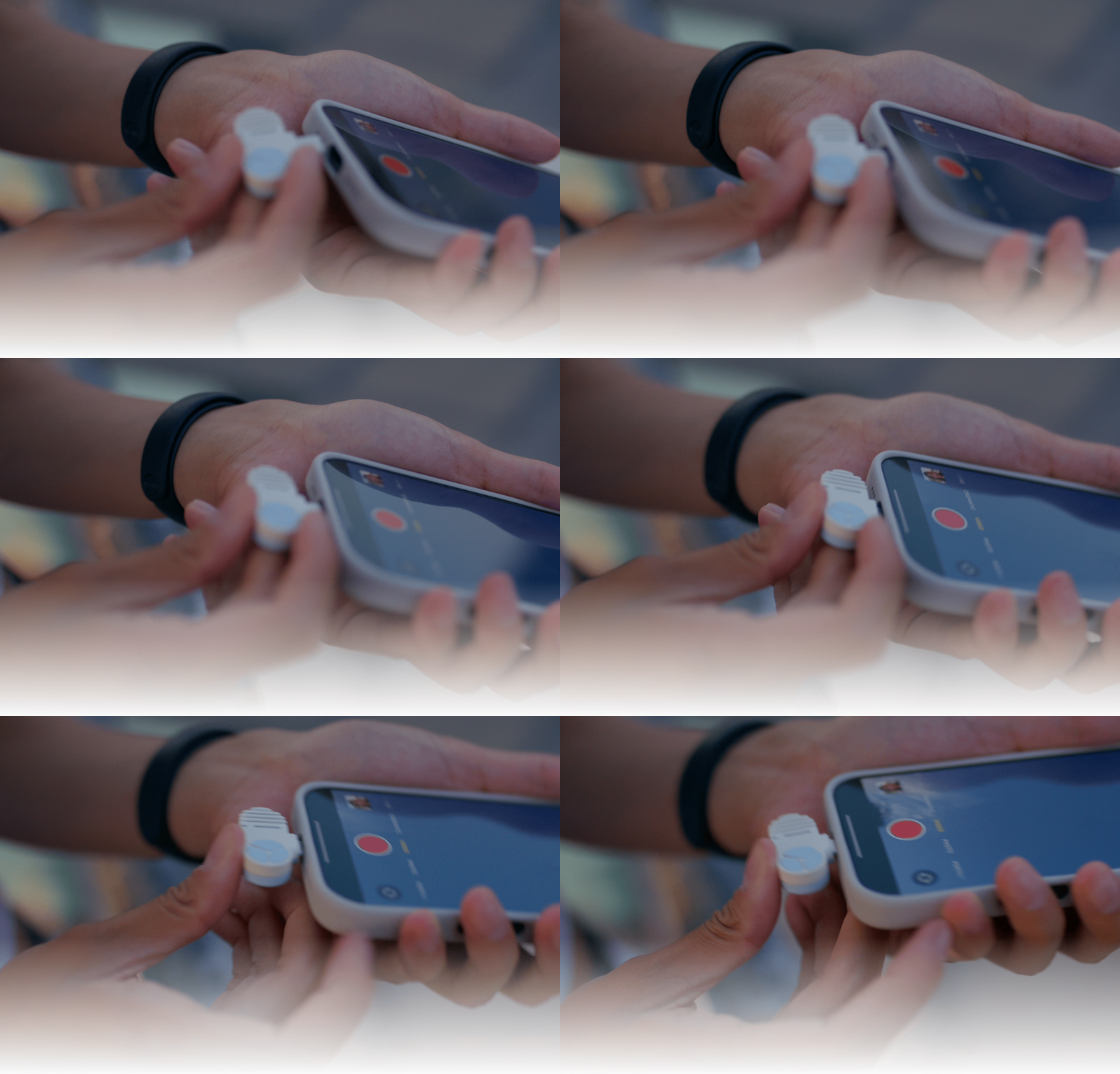
Plug Firefly into any USB device and adjust your settings on the device itself. No external apps are needed.
Step 1
Plug in mic.
Step 2
Set directionality mode.
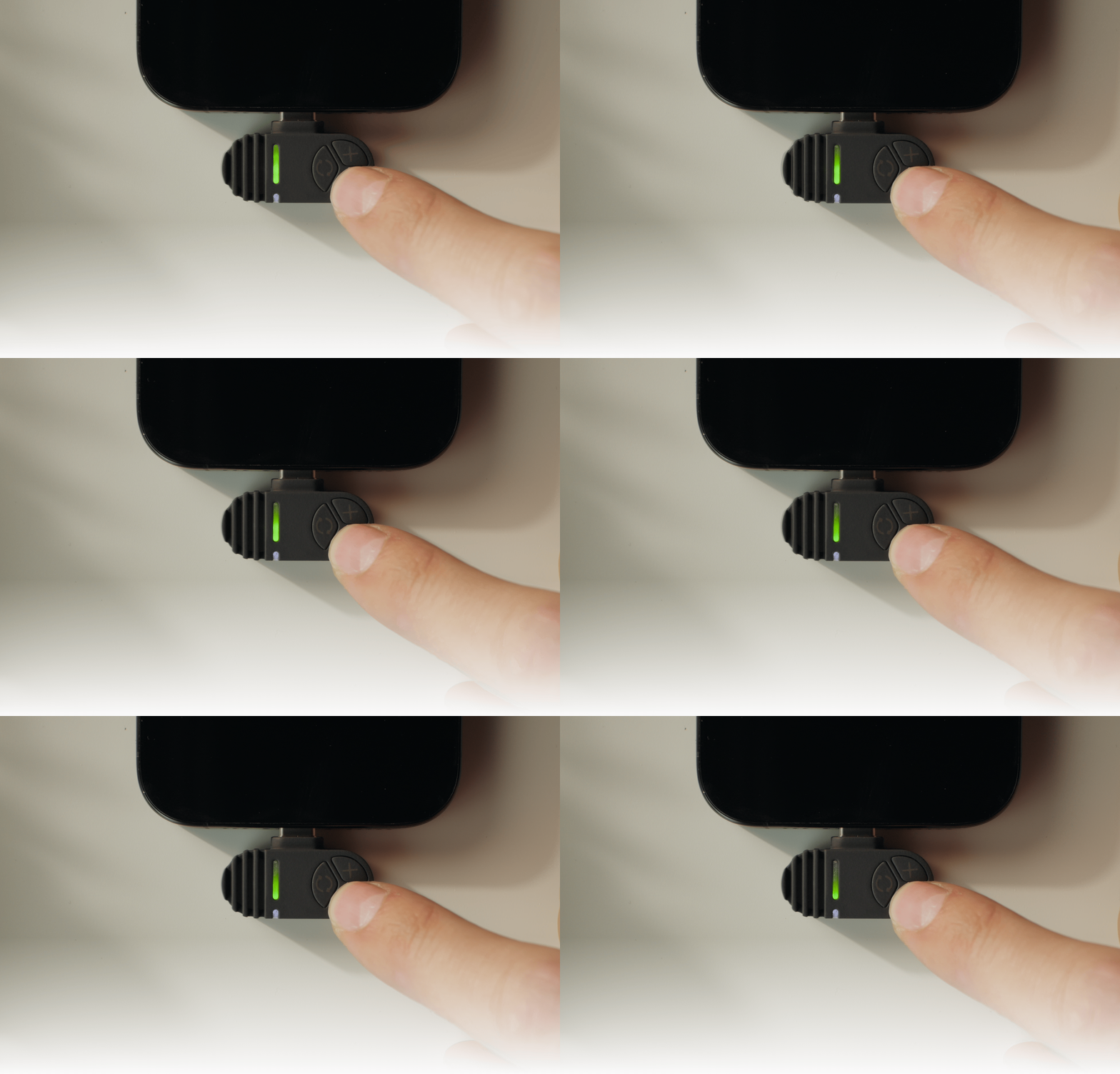
Step 3
Check audio level & adjust gain accordingly (low green level means volume is too low, medium green level means the volume is just right, red level means the sound is being compressed). The red flickering isn’t necessarily bad, and actually can be convenient for live recordings, it just means that the microphone gain is automatically reduced when loud sounds occur.
4 Ways to Record
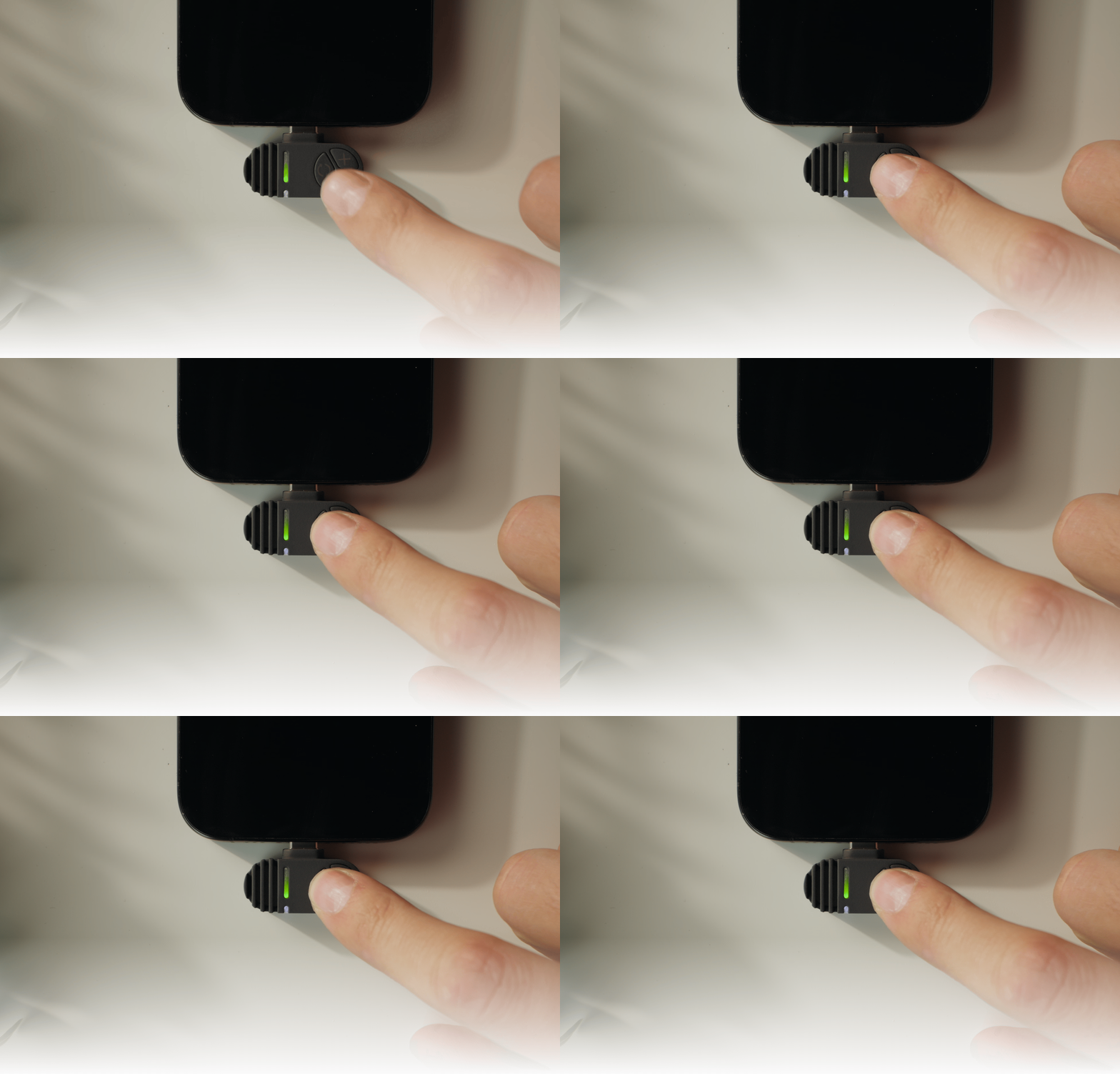
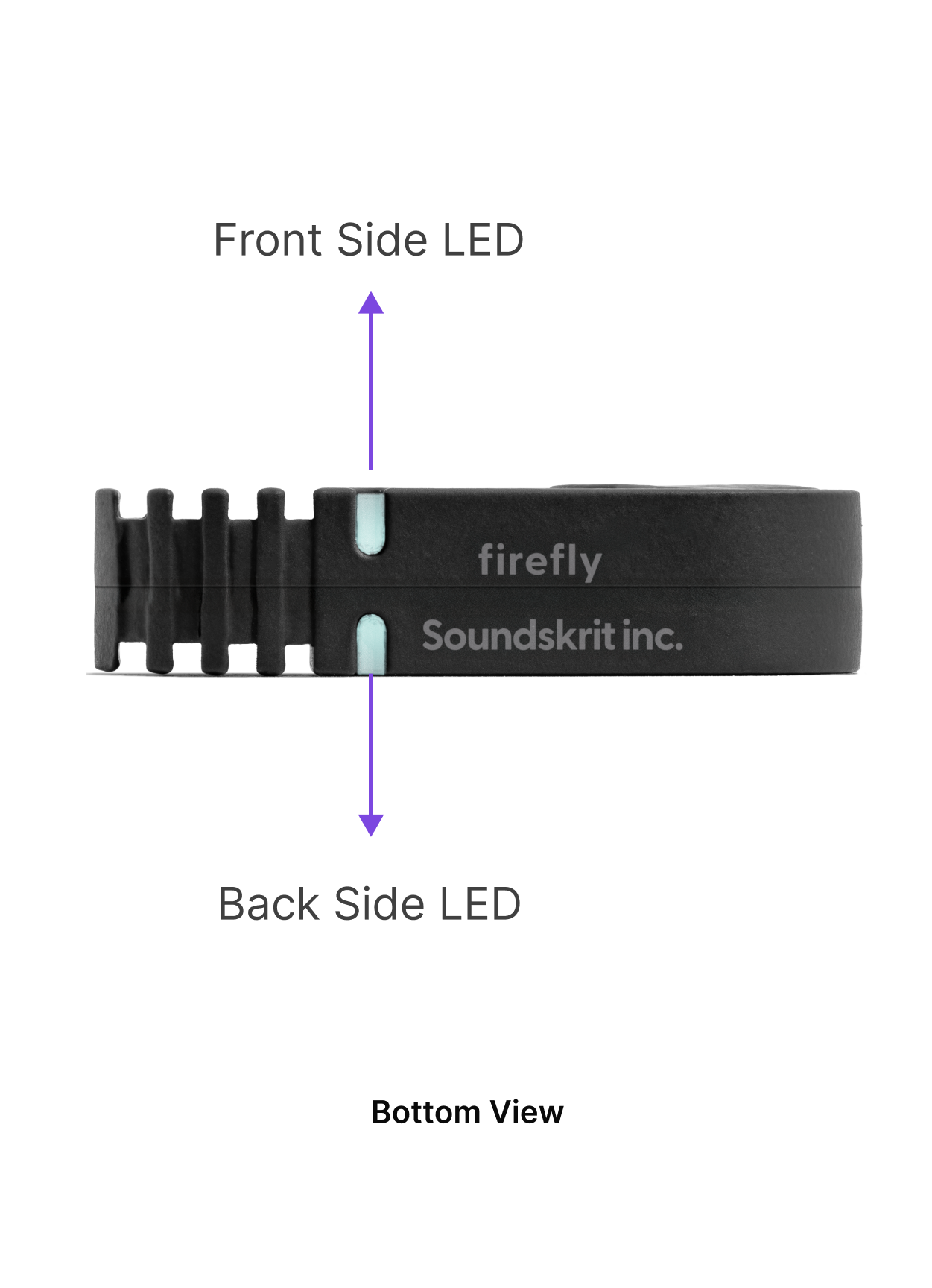
Firefly’s white LEDs indicate which recording mode is selected.
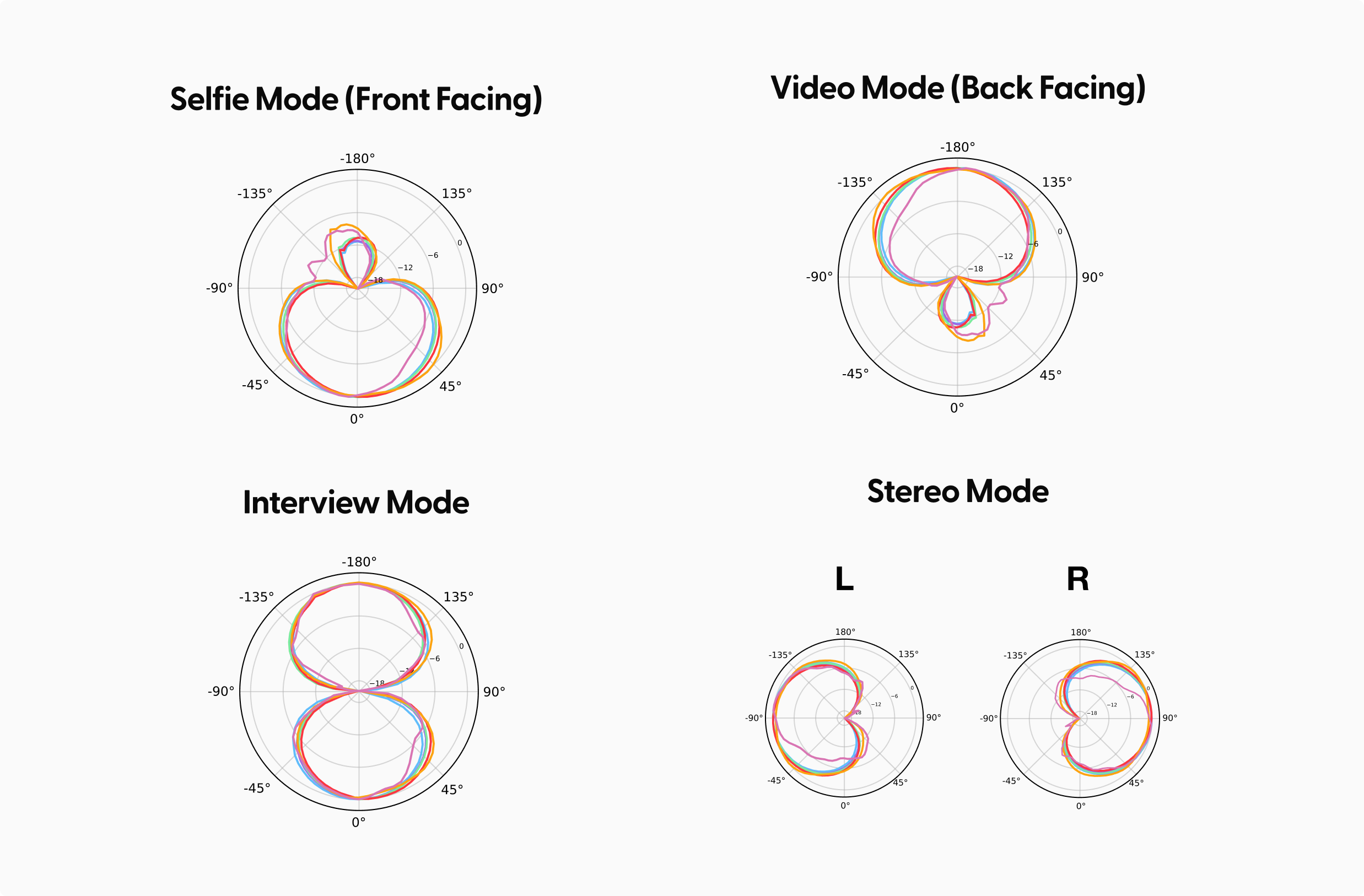
Selfie Mode
Ideal for vlogging and front-facing videos.
Video Mode
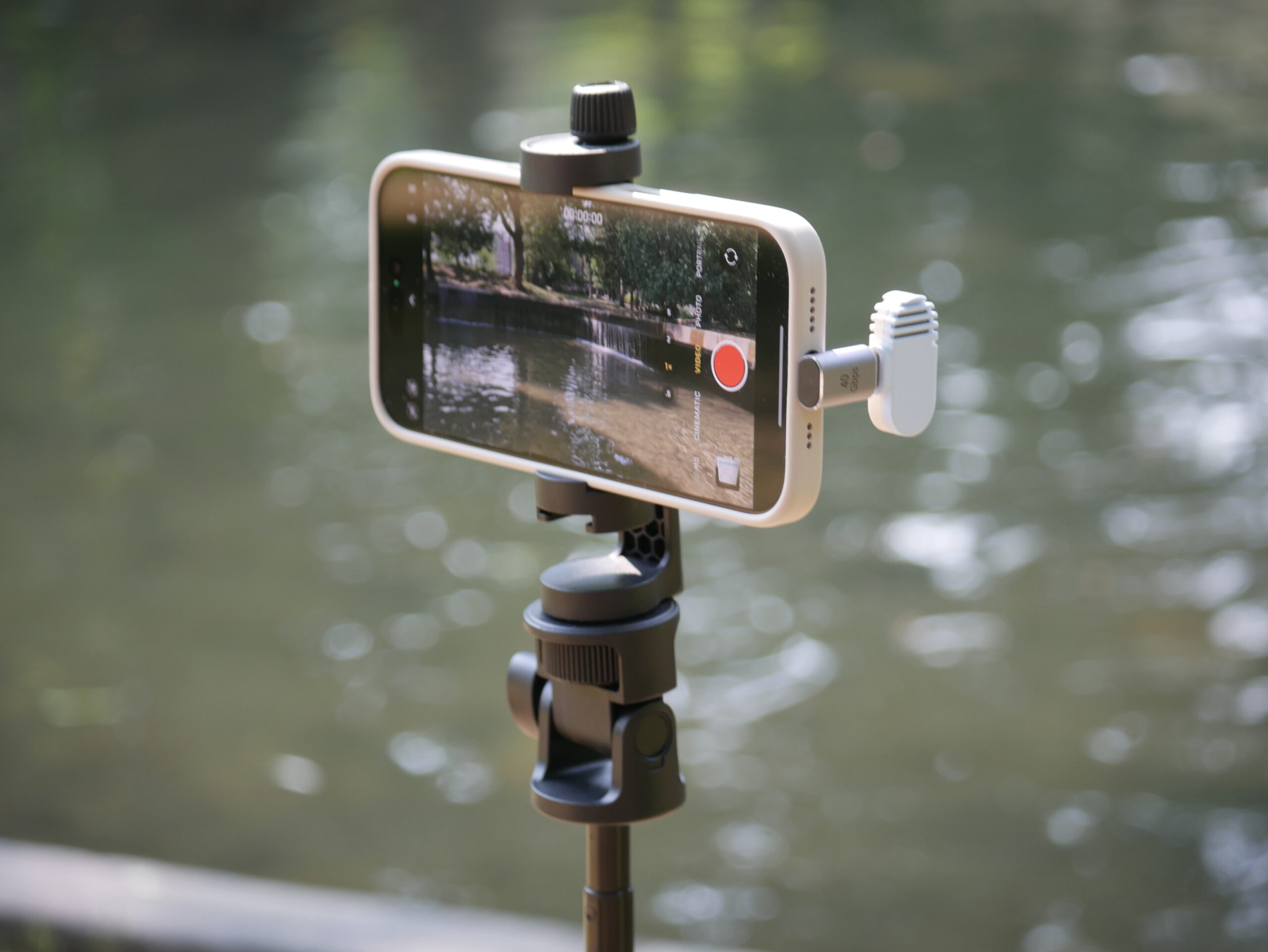
Perfect for filming what’s in front of you.
Interview Mode
Firefly listens in both directions, perfect for one-on-one recordings.
Stereo Mode
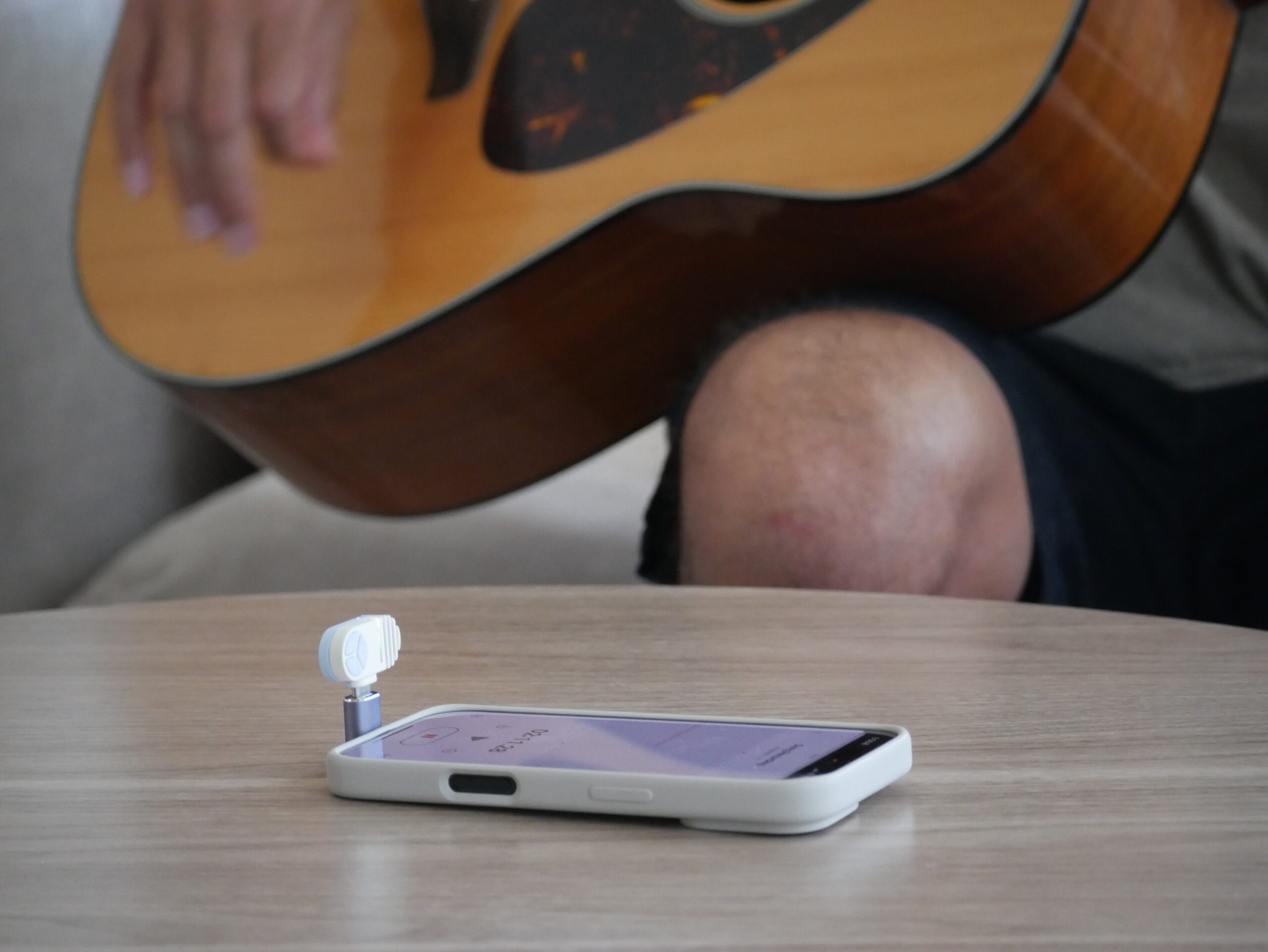
Music, field recordings, and other immersive content. Make sure to reorient the microphone!
User Manual
No External Apps Required
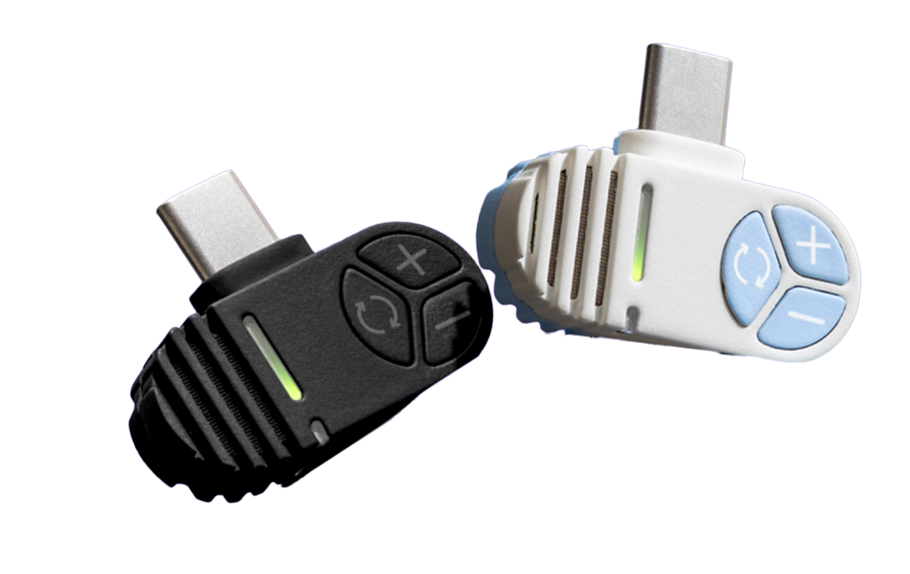
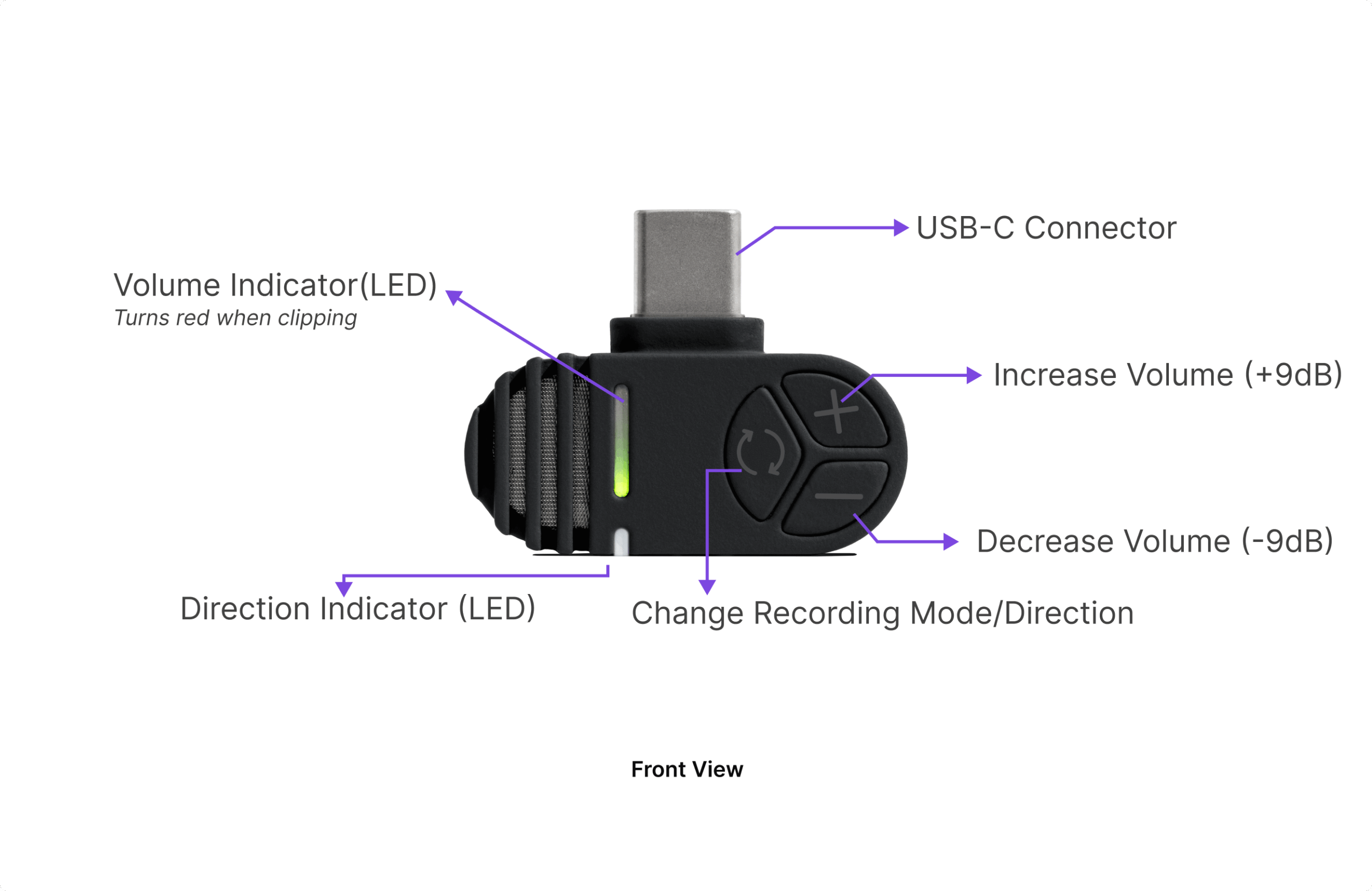
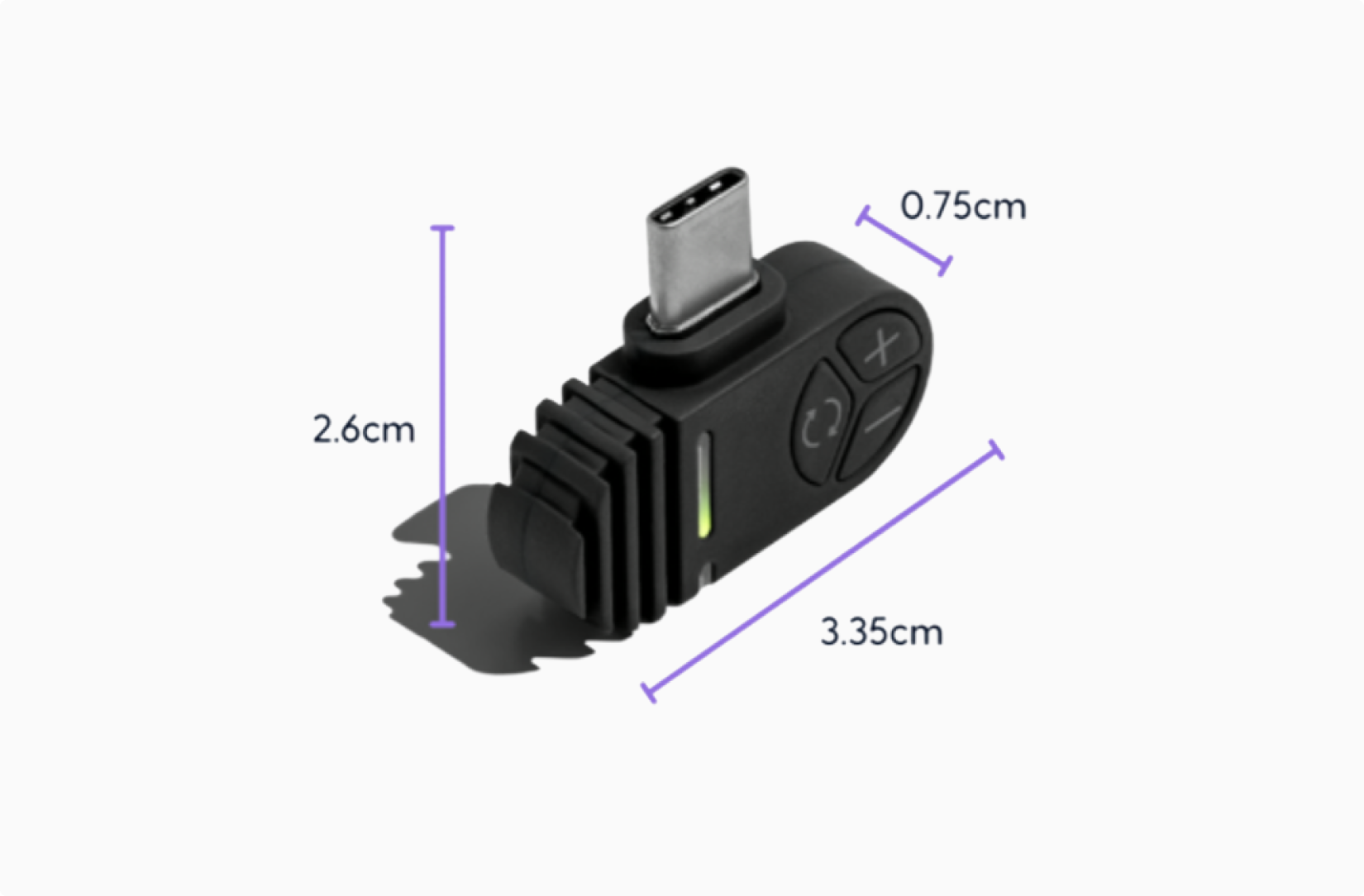
Firefly has several built-in buttons and LED indicators.
Mode Change Button
Toggle between 4 different directionality modes. The LED “Direction Indicator” will change accordingly to let you know which recording mode the device is in.
LED on Front Side
Points a supercardioid to the front of the device (i.e. selfie mode)
LED on Back Side
Points a supercardioid to the back of the device (i.e. video mode)
LEDs on Both Sides
Creates a dipole to pick up both sides of the device (i.e. interview mode)
LEDs Blinking
Creates a stereo mode using two opposite facing cardioids.
Volume Buttons
Firefly’s volume buttons adjust the microphone’s gain in +9dB steps. The Volume Indicator LED will turn red if the device is clipping.
Stereo Recording
Check Your Mic Orientation!
When recording in stereo, you will want to reorient the microphone position as shown in the images below.
- Use a right-angle adapter to position the mic easily ↴
- here’s one we recommend.
Firefly Stand
Easy Mounting, Easy Detaching
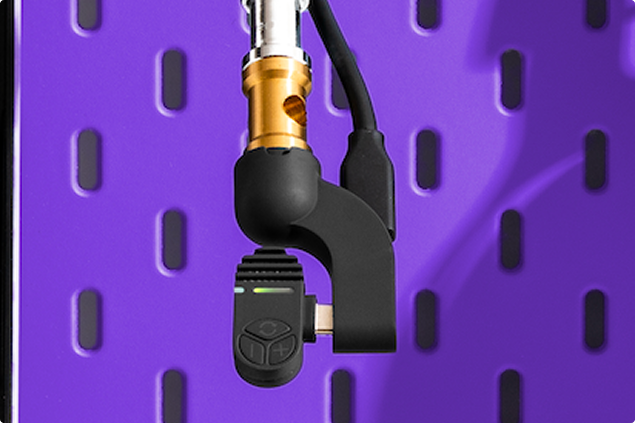
The Firefly stand comes with a base so it can easily sit on your desktop, or a detachable adapter that can easily mount to a standard boom arm.
Desktop Adapter
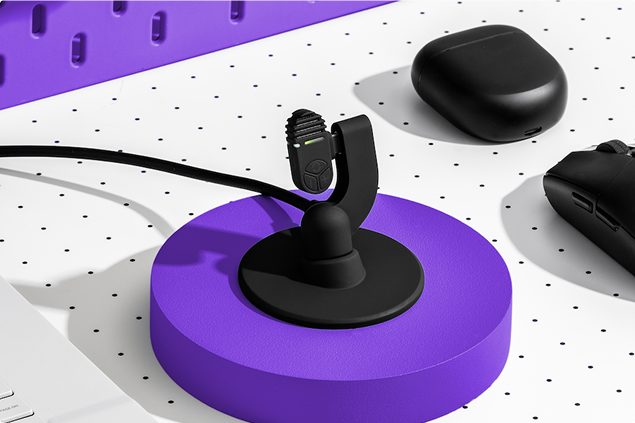
It can be set on your desktop easily.
Boom Mic Stand
The top piece can be unscrewed and used as an adapter to screw onto a boom mic arm.
- If you have any confusion on this setup, here is a video tutorial ↴
- Watch Video Tutorial
Tech Specs
Studio-Grade Specifications
Click through to see Firefly’s specs.
Acoustical & Electrical Specifications
Beam Patterns:
Selectable
Equivalent Noise Floor:
14 dBA
1kHz Sensitivity:
-34 dBFS/Pa
Acoustic Overload Point
@ 1 kHz (0dB Gain):
128 dBSPL
Sample Rate:
48 kHz
Bit Depth:
24-bit
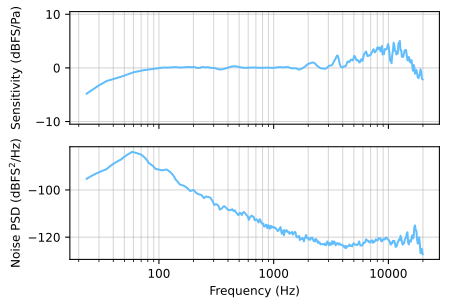
Frequency Response & Noise
*We’ve applied an EQ on the mic that we felt sound good and help with presence.
Polar Patterns
200 Hz
1000 Hz
2000Hz
4000 Hz
8000 Hz
16000 Hz
Firmware Updates
Flashing Tool
This flashing tool will allow you to update the firmware on your Firefly. Please note that is only works in a Chrome based browser on a computer (not a cellphone or tablet).
Firefly flashing tool
Web based flashing is not supported in your browser. Please use a Chrome based browser like Google Chrome or MS Edge.
Firmware Changelog
v1.2.0
- Tuned polar patterns for stereo cardioids and front/back supercardioids.
- Updated USB descriptor to fix microphone not getting detected on certain computers.
v1.1.0
- Initial public release.
Instructions:
- Hold down the “+” (volume up) button on Firefly while you plug it into your computer’s USB port. After it is plugged in, you can release the button.
- Click on “Connect to Firefly”. A popup will appear with the message “soundskrit.ca wants to connect to a serial port”. In this popup, select “USB JTAG/serial debug unit”, then click on “Connect” at the bottom of the popup.
- Click on “Update Firefly” to flash the newest firmware version.
- Wait for the message “Flashing successful” to appear, then unplug your Firefly.
Testimonials
Loved by Creators Everywhere
Don’t just take our word for it see how Firefly transforms the way creators capture sound.
Willie Green
Ameesha Mahajan